Sonic · Activation
Sonic registration guide

How to register and activate Sonic

Step by step: from registration to live copy-trading. Everything you need in one page.

5
phases
20
steps
~15
minutes
Start here

Before you start

Have these ready and the whole thing takes about 15 minutes.

🔗 Your inviter's link The personal registration link from the partner who invited you
🪪 ID documents Passport, national ID or driver's license — you'll upload two for KYC
💵 Funds to deposit Minimum $10 to start copying. Crypto has 0% fee, card 6%
🎟️ Community Token Ask your inviter for the code — it unlocks 24× amplification
Phase 1 01

Register on CopyX

Steps 1–5 · create your account, verify it, log in and complete the survey.

01

Open the partner link

Open the CopyX registration page (copyxapp.io, formerly AITech / IB Portal) through your partner's link. Do not go to the site directly — the link is what ties your account to the right partner.

You need a registration link

Ask the person who invited you for their personal CopyX registration link. The link is required so your account gets 24× amplification and is linked to the correct partner.
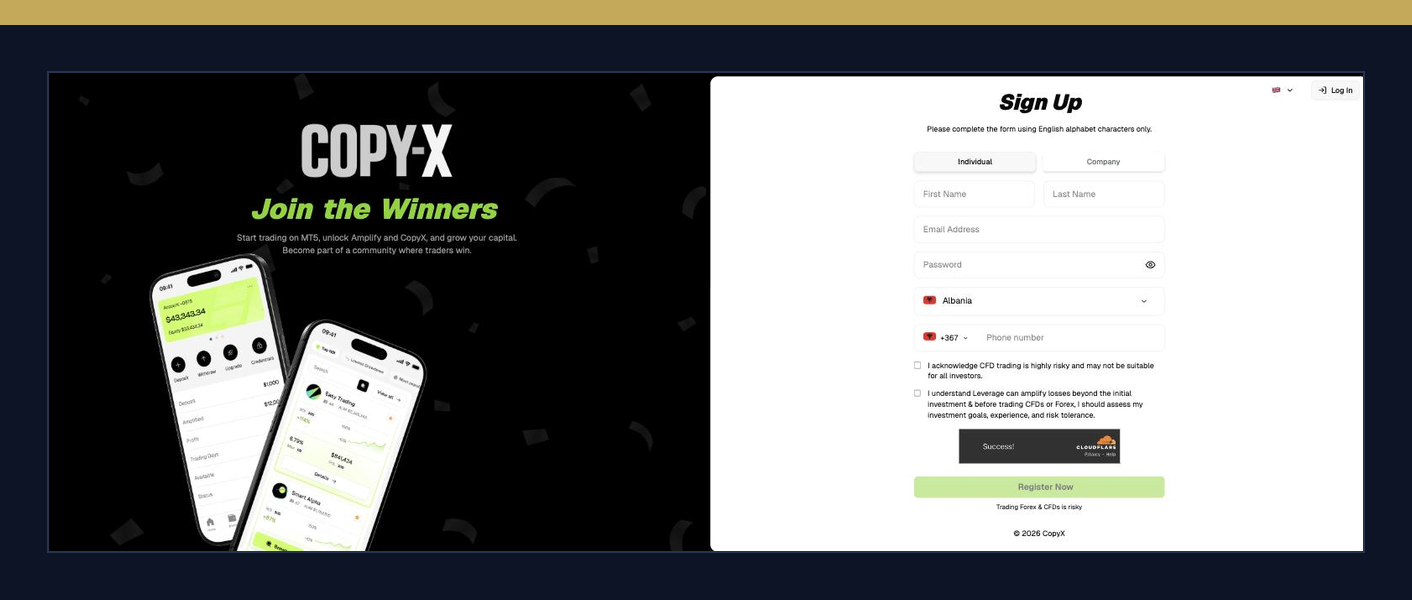
Open the partner link
02

Enter your details

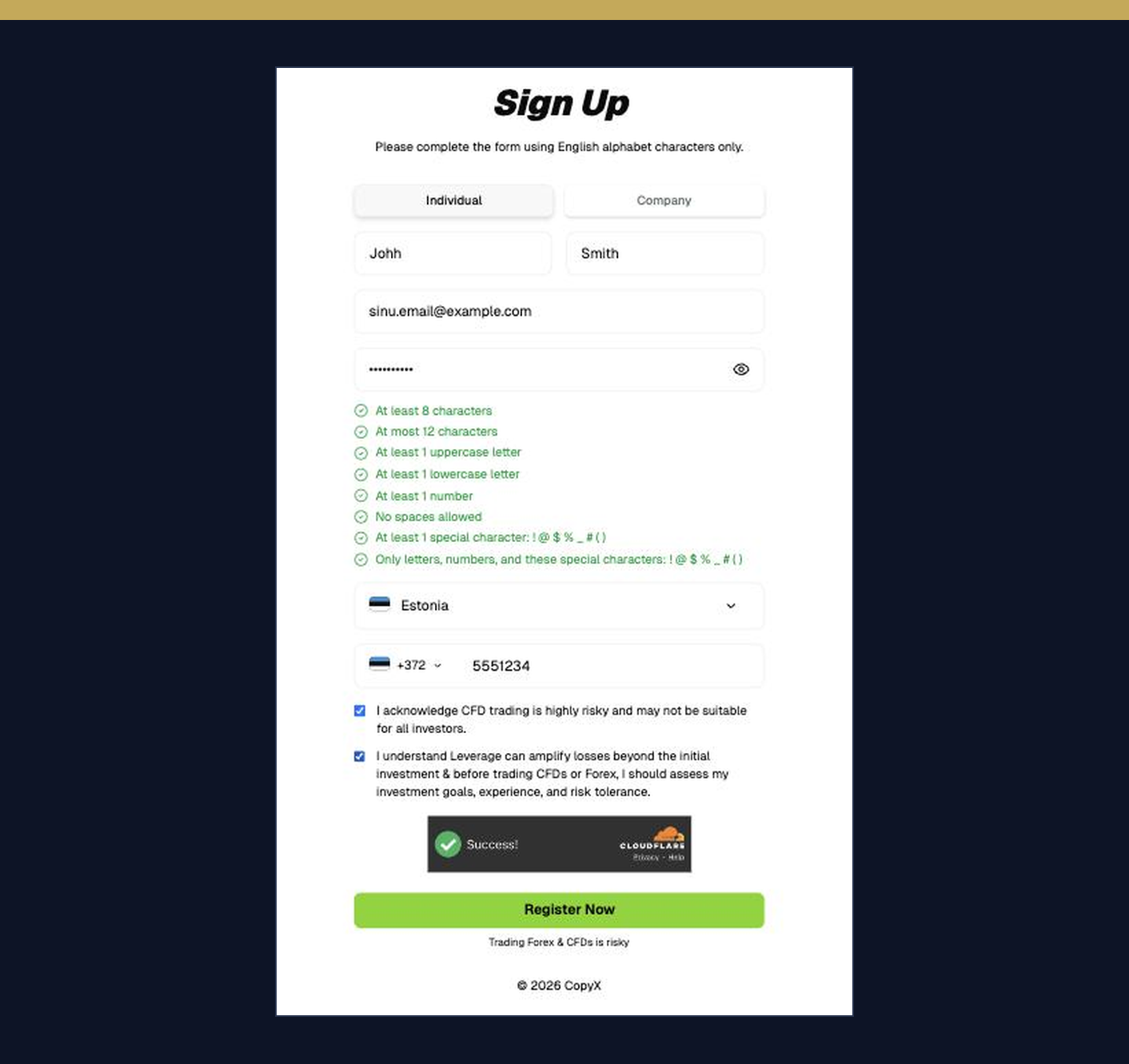
Fill in the form using Latin letters only. All fields are required, then click Register Now.

You'll need: first and last name · email · a strong password · country of residence · phone number · two checkboxes for the risk disclosure.
Use the same name spelling as on your ID document. If they don't match, KYC in step 9 will be rejected.
Enter your details
03

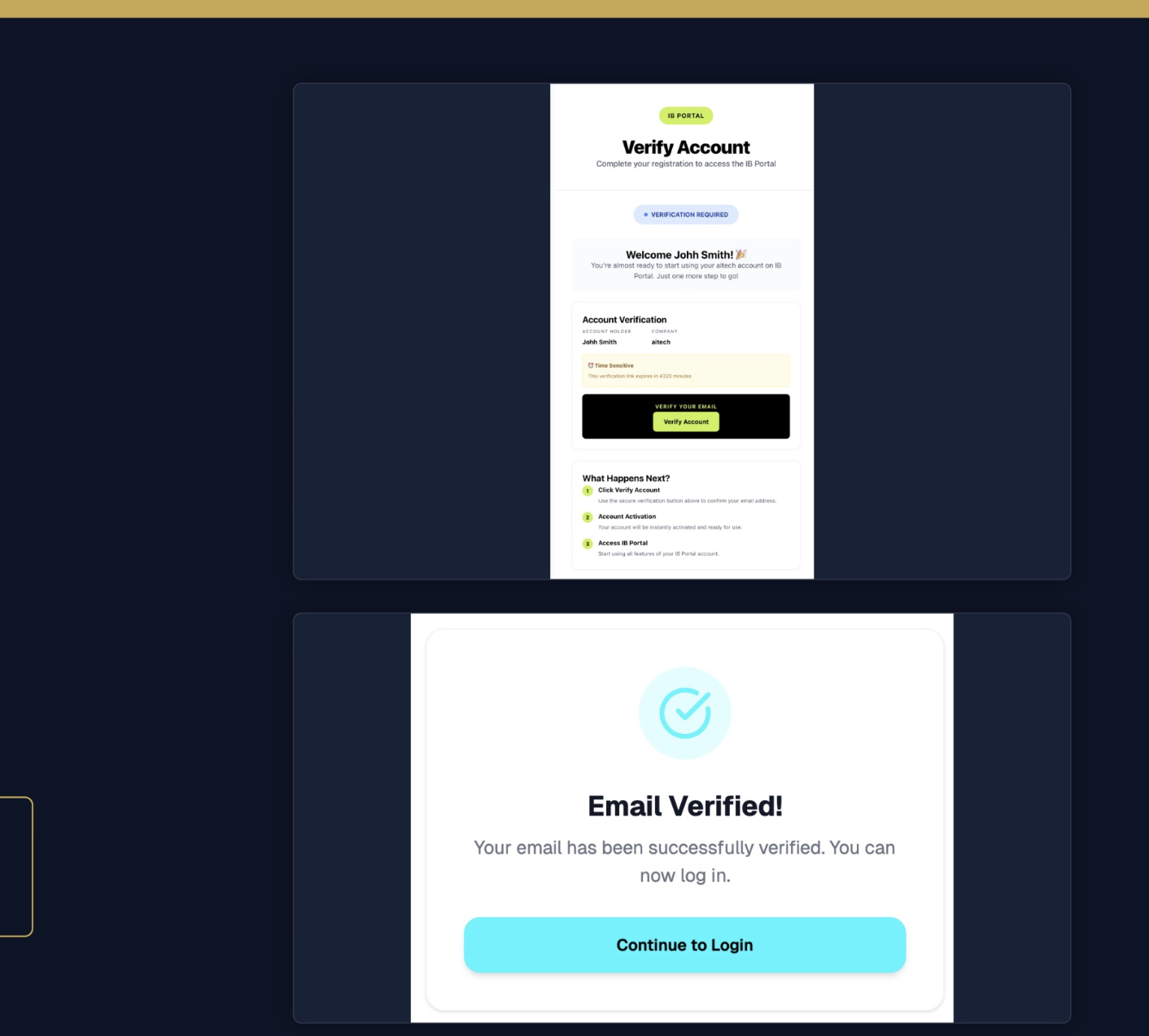
Verify your email

Look in your inbox for an email titled Welcome — Verify Your aitech Email. Click Verify Account. On the confirmation page, click Continue to Login.

If you don't see it within 2 minutes, check your spam / promotions folder.
Verify your email
04

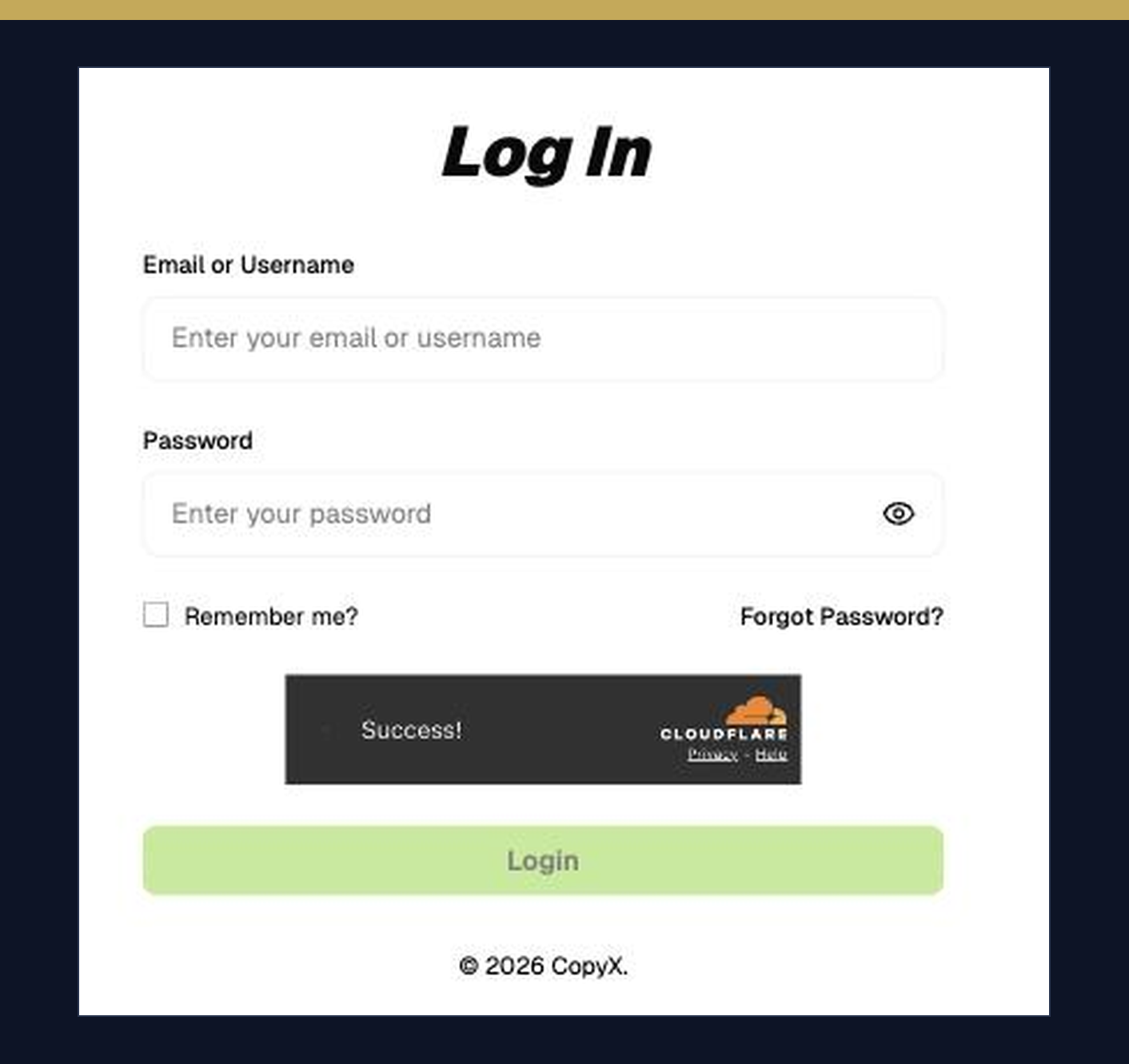
Log in to the portal

Enter the email and password you just registered with, and click Login.

Save your portal login somewhere safe. You'll use it every time you check commissions or share your own partner link.
Log in to the portal
05

Complete the suitability survey

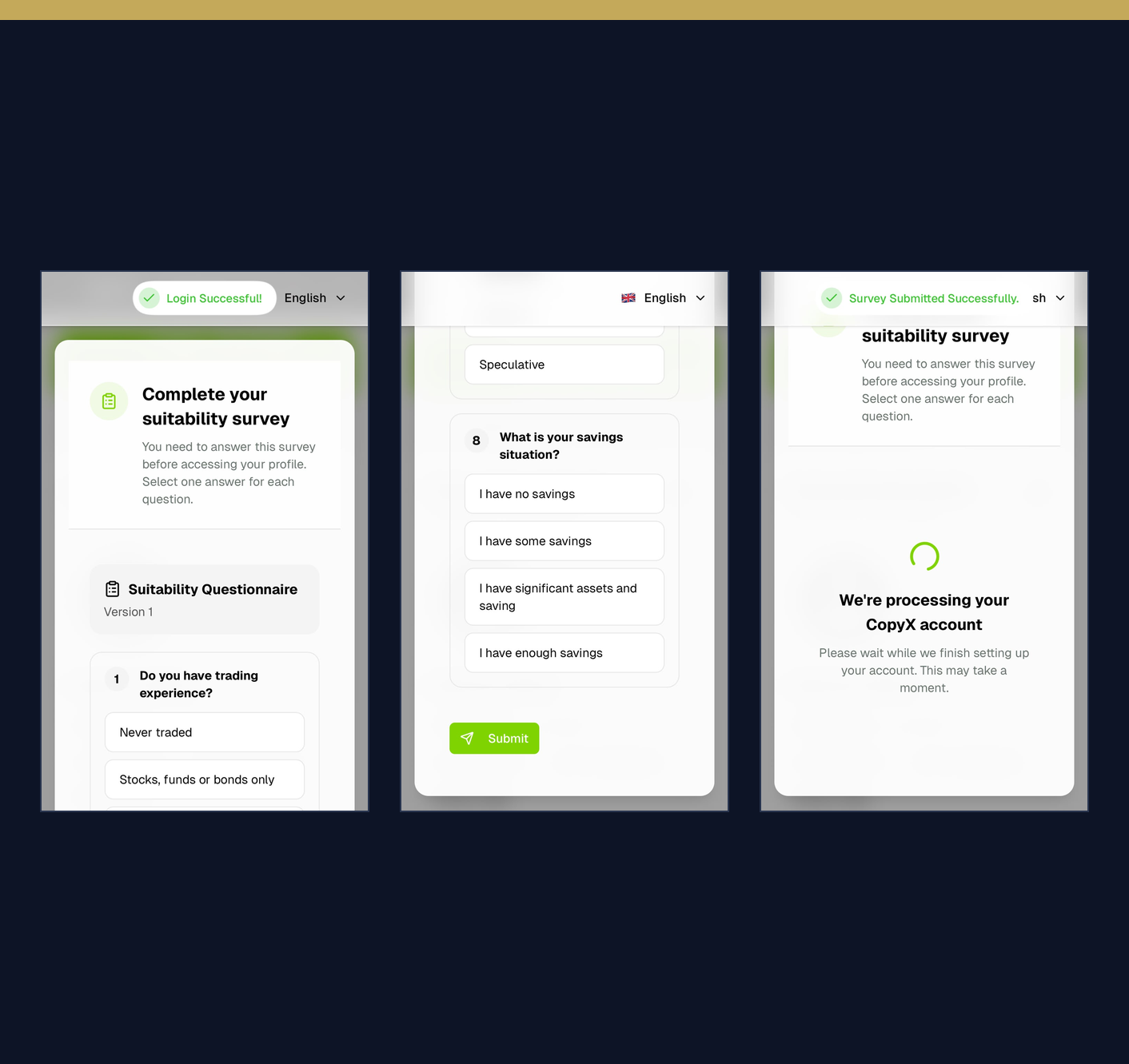
Right after your first login the Complete your suitability survey screen opens. There are eight questions and your profile stays locked until they are answered. Pick one answer per question and click Submit at the end.

You will be asked about: trading experience · position sizing · impact of a loss · employment · financial situation · financial background · risk attitude · savings. Answer honestly, this is the broker's mandatory suitability test.
After Submit you will see Survey Submitted Successfully and then We're processing your CopyX account. Wait until the account is ready.
Suitability survey
Phase 2 02

Sync your TAG Markets broker account

Steps 6–8 · link your broker account through IB Portal.

06

Register CopyX

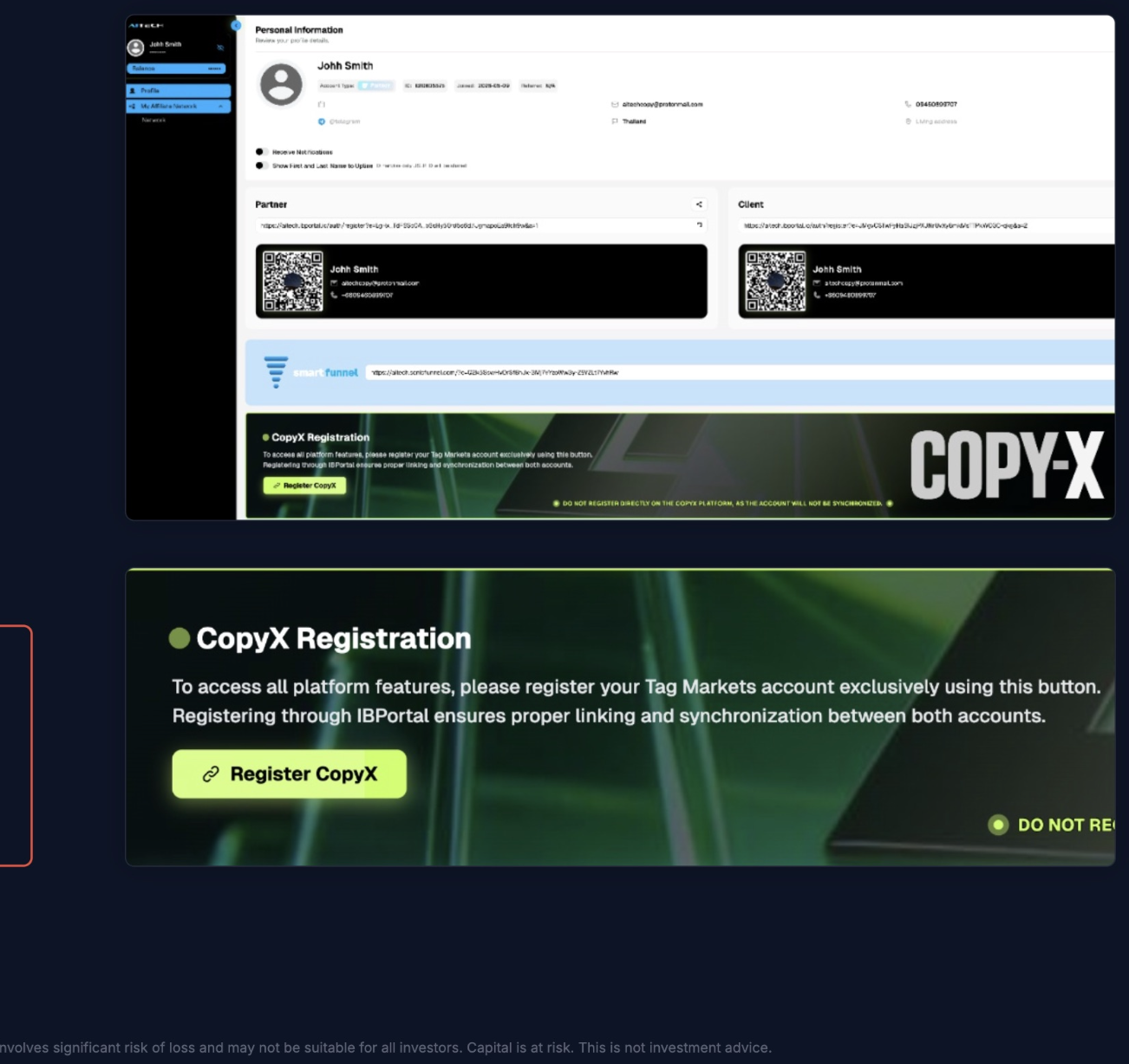
On the IB Portal profile page, scroll down until you find the CopyX Registration card. Click the green Register CopyX button — this automatically creates your linked TAG Markets account.

Do NOT register directly on CopyX or the TAG Markets platform — your account won't sync with IB Portal and you'll miss out on commissions.
Register CopyX
07

Sync your account

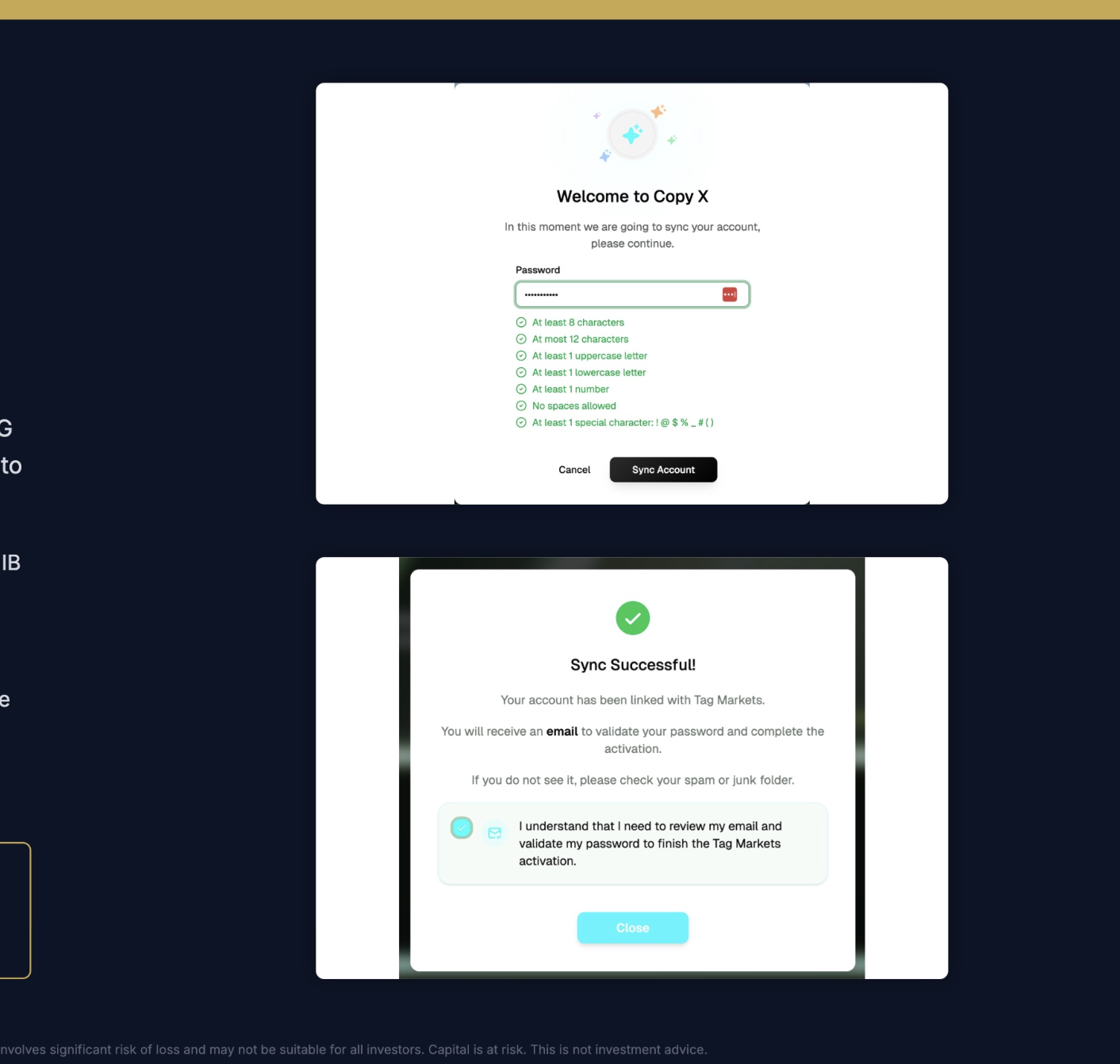
A Welcome to Copy X pop-up appears. Create a TAG Markets password (it can be the same as your IB Portal one), click Sync Account and confirm the success message.

  1. Enter a password that meets the requirements
  2. Click Sync Account
  3. Tick the confirmation box
  4. Click Close — your email is the next step
Save your TAG Markets password — you'll use it to log in to TAG Markets directly in the next step.
Sync your account
08

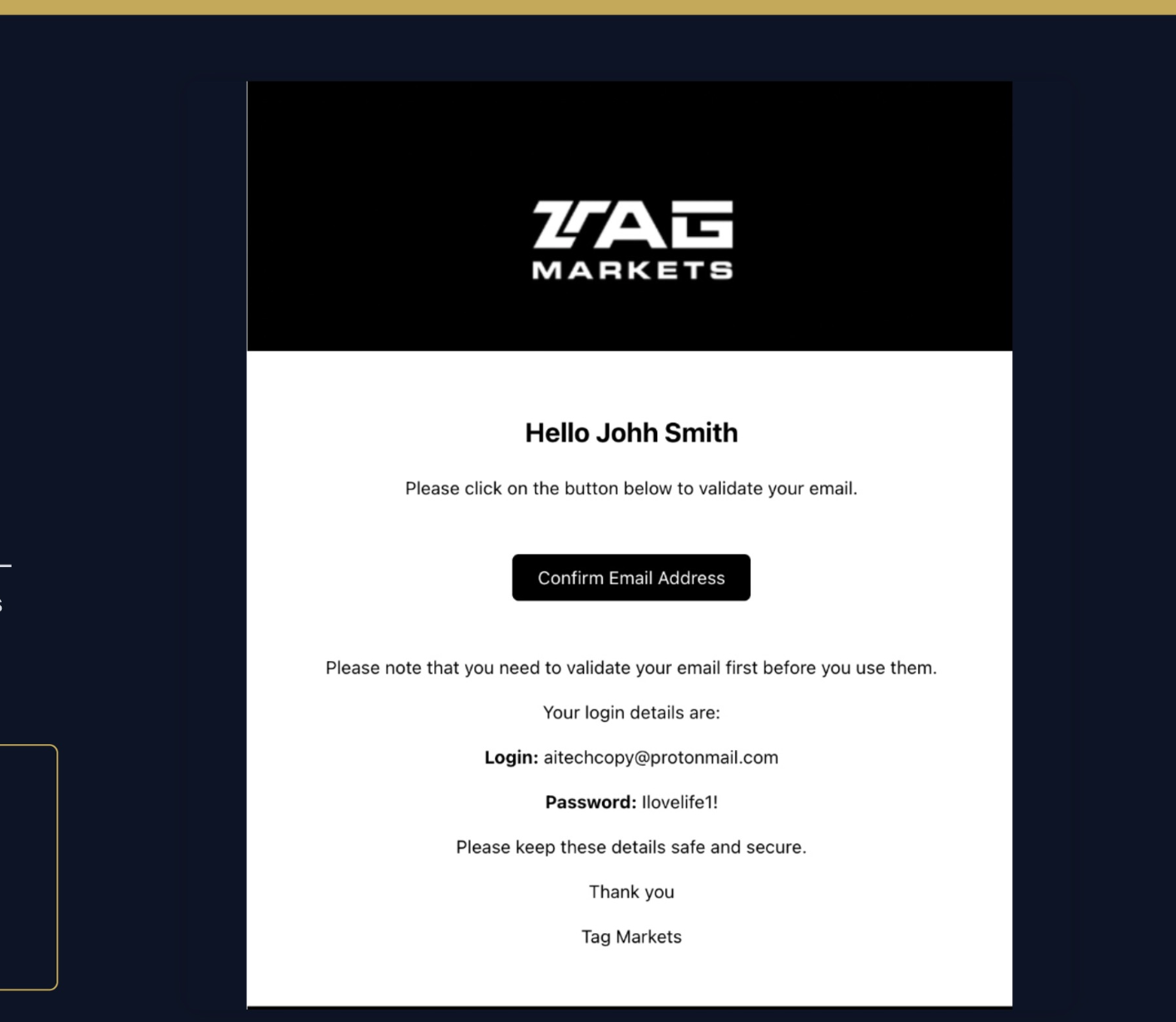
Confirm your TAG Markets email

Check your inbox for the TAG Markets email. Click Confirm Email Address. You'll be logged in to TAG Markets automatically. Save the login details from that email for future logins.

Going forward: you can log in either via Login to CopyX from your IB Portal profile, or directly at portal.tagmarkets.com/login.
Confirm your TAG Markets email
Phase 3 03

Verify your identity & make a deposit

Steps 9–12 · complete KYC and fund your account for the first time.

09

Verify your identity (KYC)

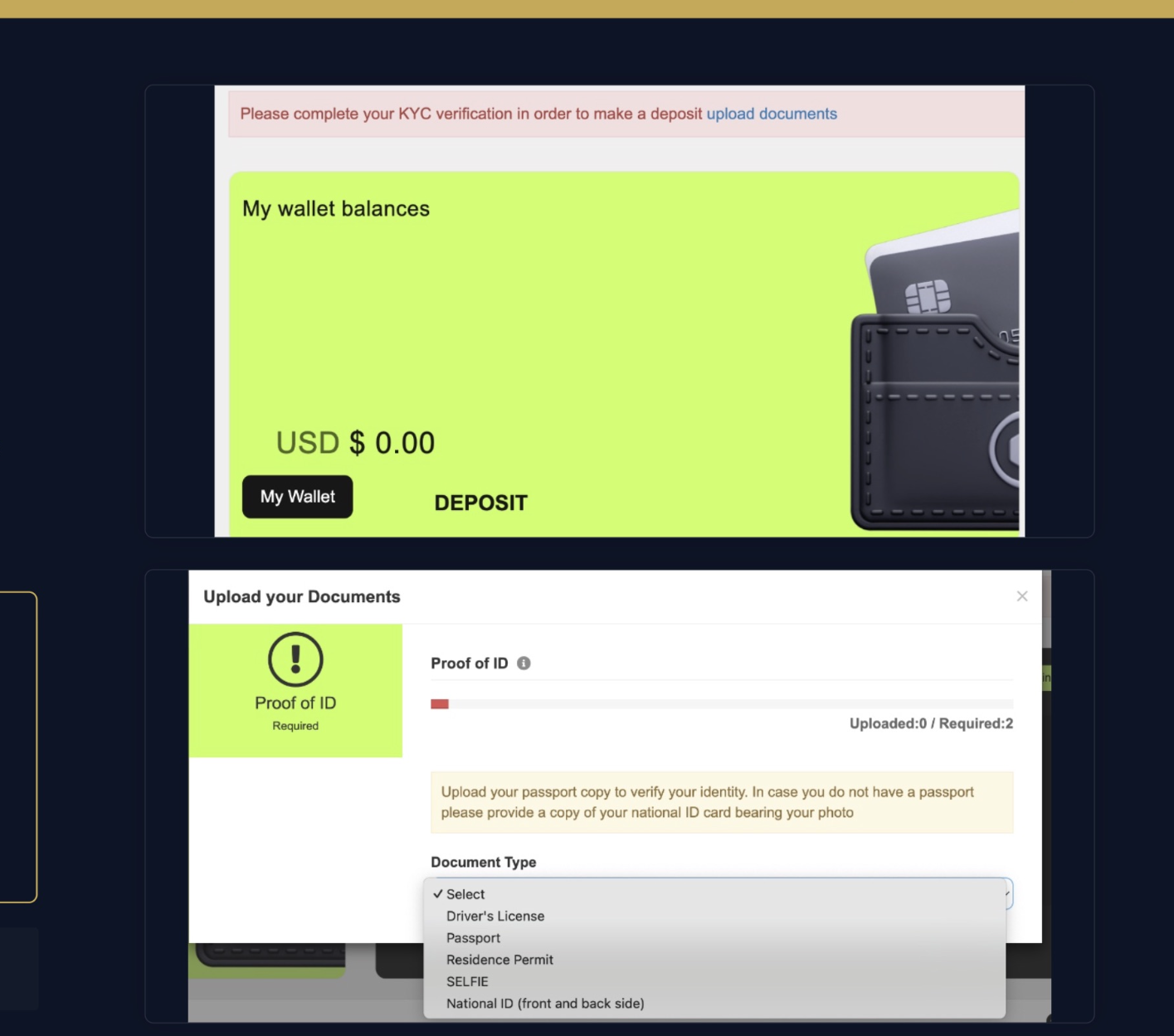
At the top of your TAG Markets dashboard, click Upload Documents on the red KYC banner. Select 2 documents from the dropdown and upload them.

Accepted documents (choose 2):
• Passport
• National ID (front + back)
• Driver's license
• Residence permit
• Selfie
Verification usually takes just a few minutes. You can move on to the deposit while it's processing.
Verify your identity
10

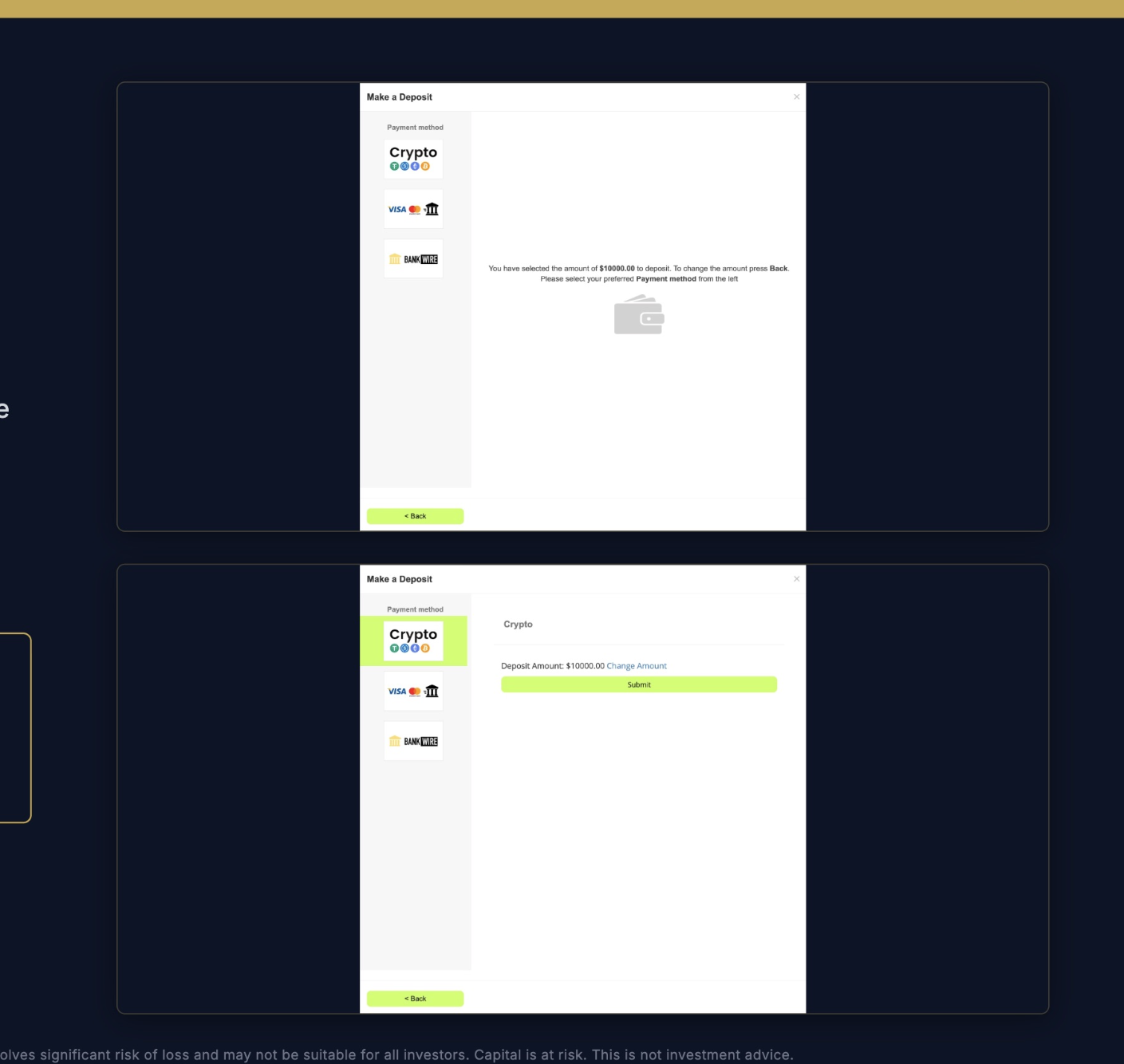
Make a deposit

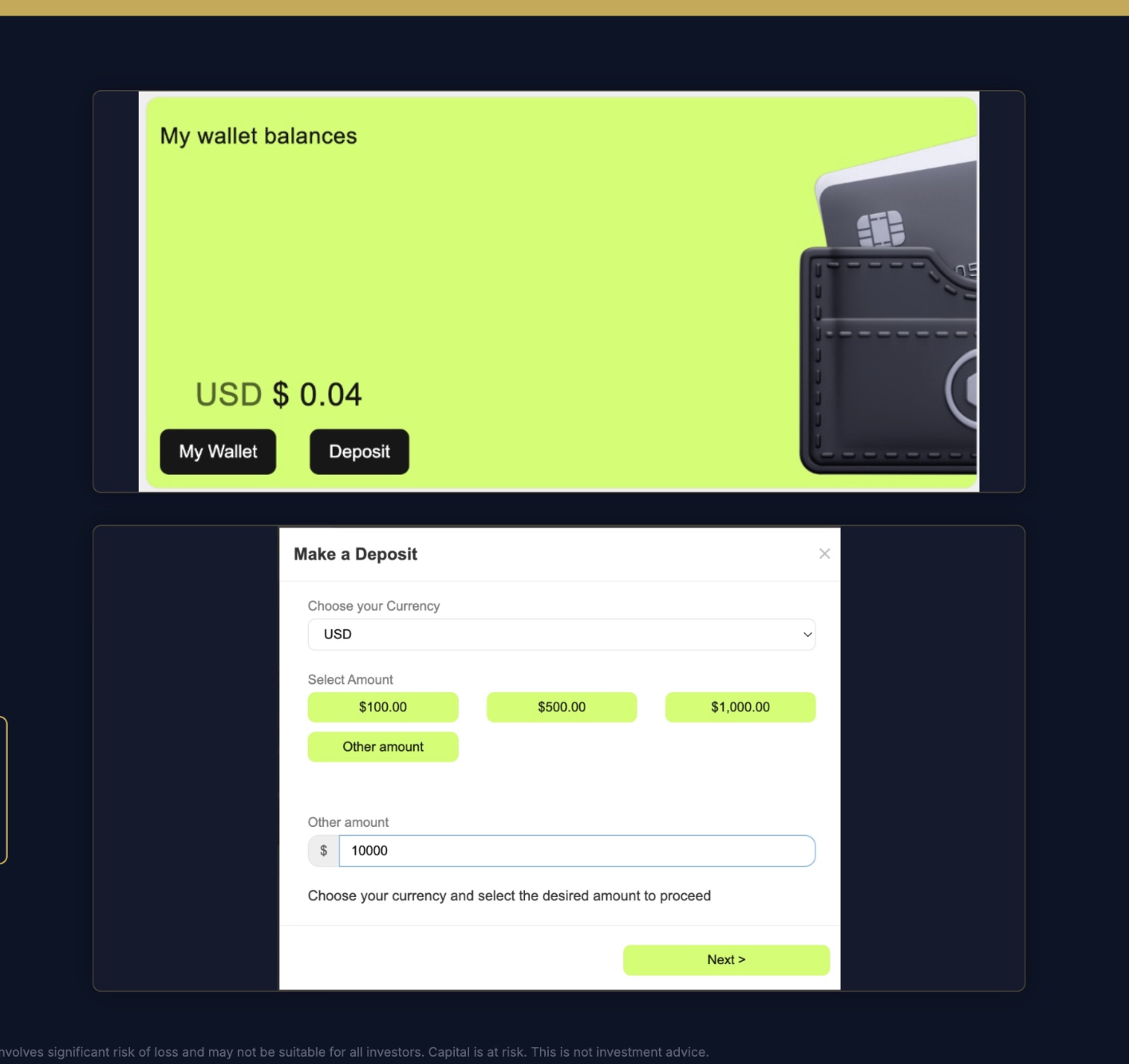
On the TAG Markets dashboard, click Deposit on the wallet card. Select USD as the currency, choose a preset amount or enter your own under Other amount, then click Next.

Tip: start with an amount that fits your goal. You can always add more later.
Make your deposit
11

Choose a payment method

On the payment methods panel, choose your preferred option:

Crypto · recommended for speed (1–5 min, 0% fee)
Visa / Mastercard · card payment (6% fee)
Bank Wire · bank transfer (1–3 business days)

Click your chosen method, then Submit.

Choose a payment method
12

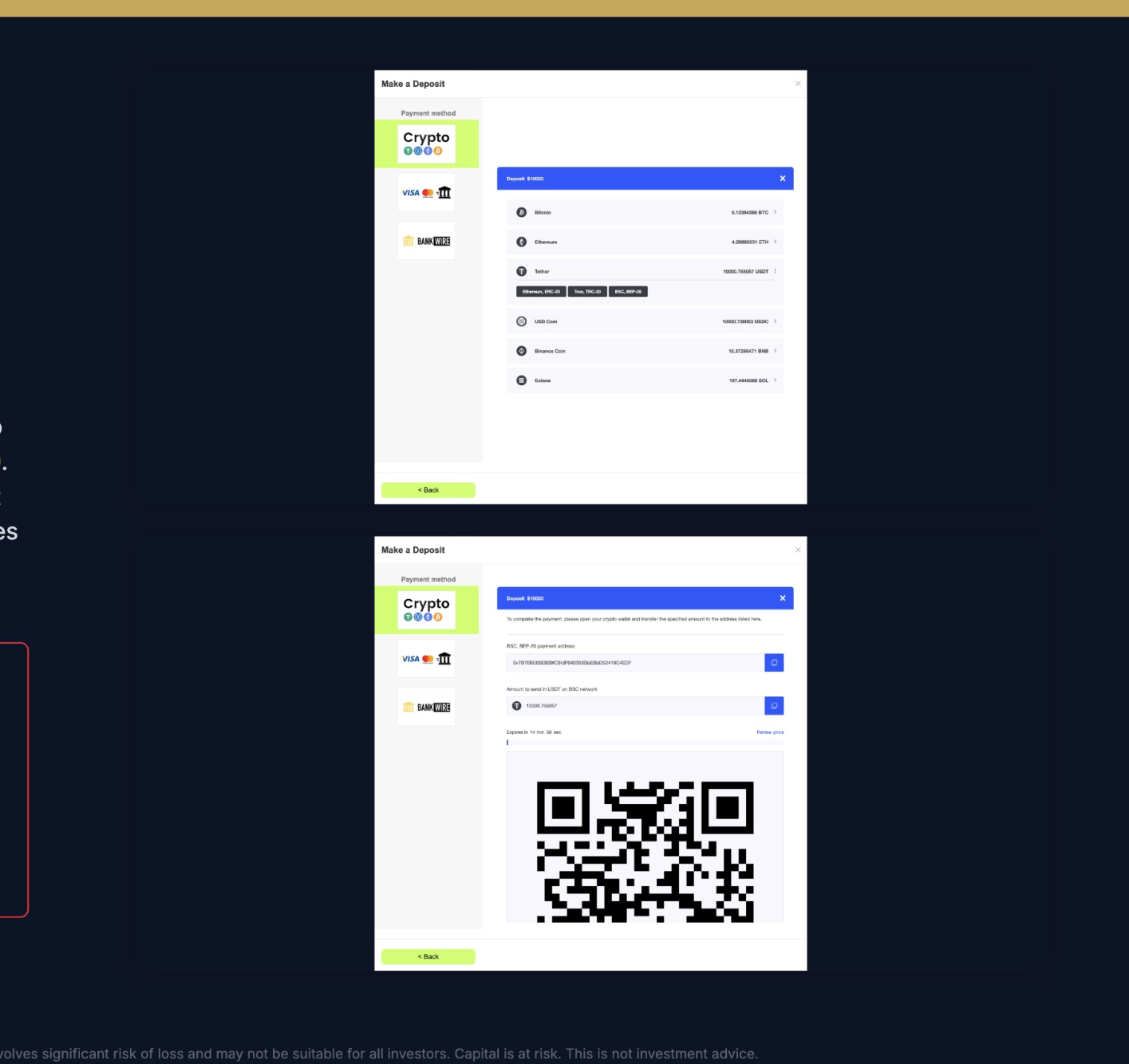
Send your crypto

Choose a cryptocurrency from the list. Recommended: USDT or USDC. Then choose a network:

USDT/USDC: BSC BEP-20 · Tron TRC-20 · Ethereum ERC-20

Copy the payment address (or scan the QR code) and send the exact amount. The quote refreshes every 15 minutes — if it expires, click Renew price.

Critical · wrong network = lost funds! The network you select in TAG must exactly match the network you're sending from. If you choose BSC BEP-20 in TAG but send from Tron TRC-20, the funds are permanently lost. Double-check both sides before you hit Send.
Send your crypto
Phase 4 04

Activate Sonic

Steps 13–16 · connect to the Sonic strategy and start copy-trading.

13

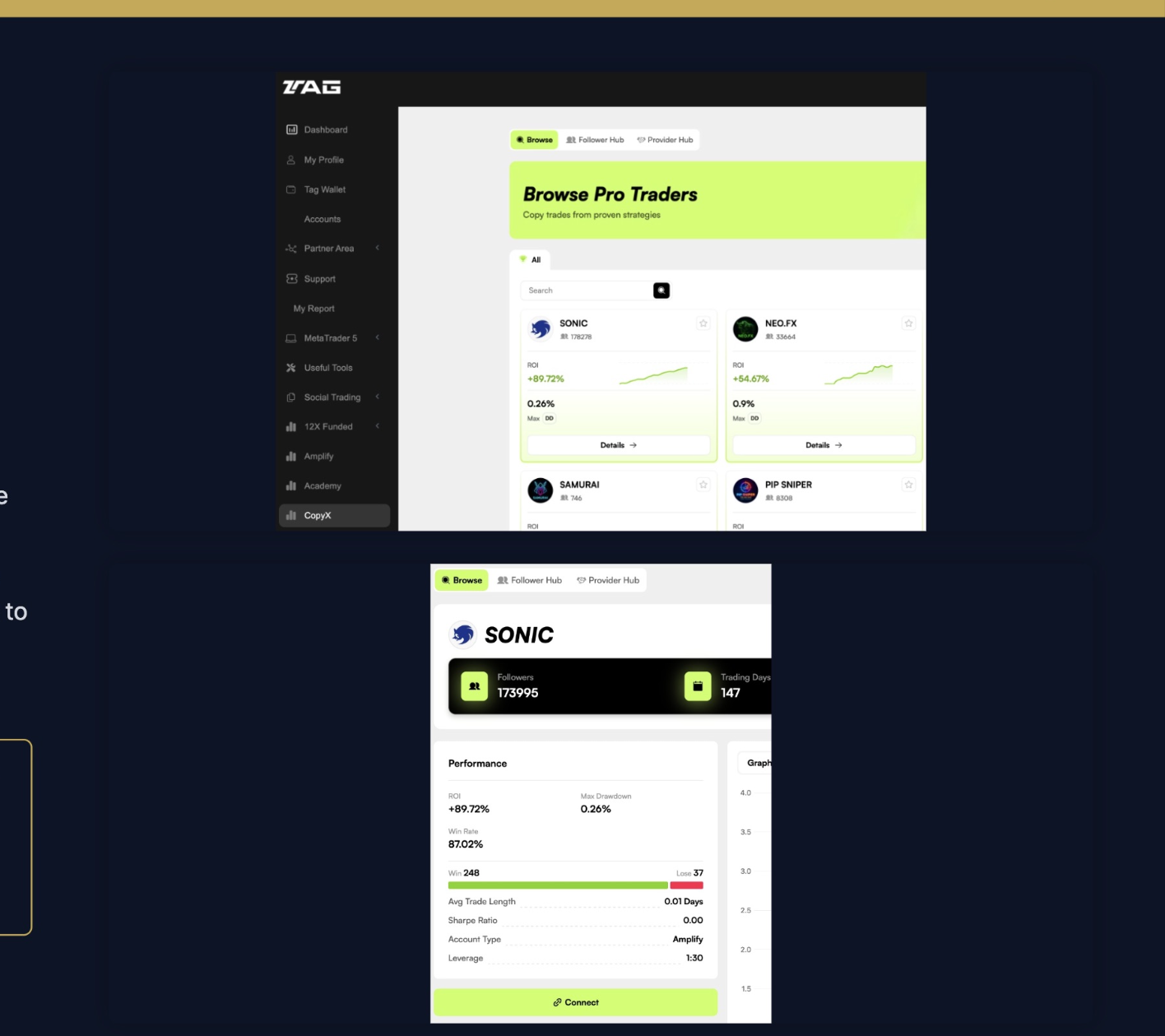
Open CopyX & connect to Sonic

On the TAG Markets dashboard, click CopyX in the left menu. At the top of the strategy browser, find the SONIC card and click Details →.

Review the live performance and trading history, then click Connect at the bottom of the page to start setting up copying.

Sonic is the #1 ranked strategy on the CopyX leaderboard with the largest follower base. Review the results before connecting — you'll see the same data every day afterwards too.
Open CopyX and connect to Sonic
14

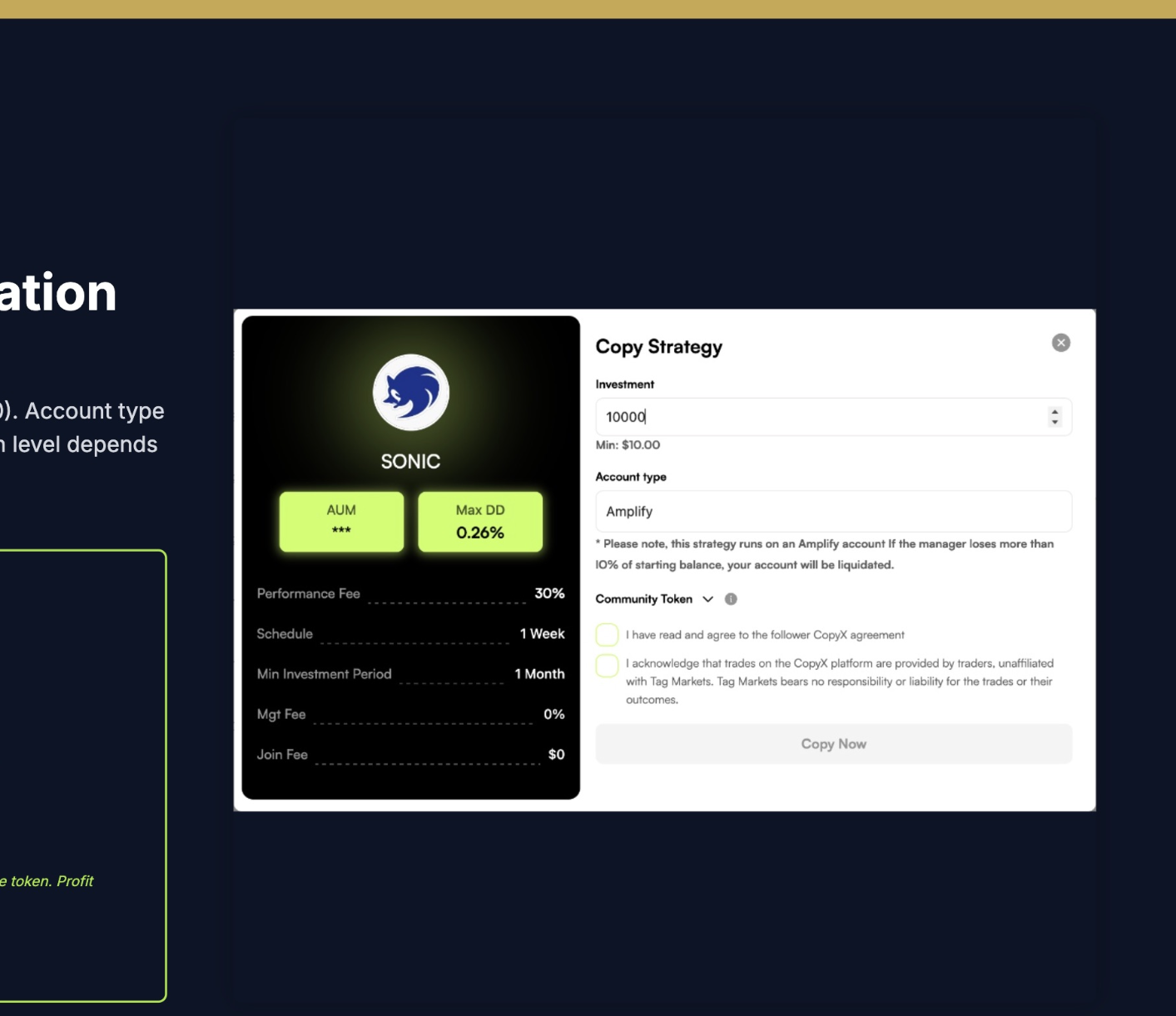
Set investment & amplification

The Copy Strategy window opens. Enter your investment amount in USD (minimum $10). Account type is Amplify. Choose your amplification:

12X Standard (default)
$10K → $120K trading capital · 10% drawdown · no Community Token needed
24X Amplified (recommended)
$10K → $240K trading capital · 5% drawdown · requires a Community Token

24× doubles your profit potential, but the drawdown limit is tighter. Steps 14–15 walk you through using the token.

Set investment and amplification
15

Get the Community Token from your inviter

For 24× amplification you need a Community Token code. It comes from the partner who invited you into the community.

You need a Community Token

Ask the person who invited you for the Community Token code. It is community-specific and unique to that partner.

16

Enter the token & HASH/GU-ID

Go back to the Copy Strategy pop-up in CopyX. Enter the Community Token code and click Verify.

The token sets your Amplify account's drawdown limit to 5% of your original balance — protecting your capital once losses reach 5%.

Once the token is confirmed, the Token Burn Wallet Address fills in automatically and a HASH/GU-ID field appears. Enter:

HASH/GU-ID: 1000

Click Submit. Tick both consent boxes and click Copy Now.

A wrong token means 24× amplification will not activate. Check carefully against exactly what your inviter sent you.
Phase 5 · Bonus 05

Manage your live account

Steps 17–20 · track trades, withdraw profit, check your account from your phone.

17

Explore the Follower Hub

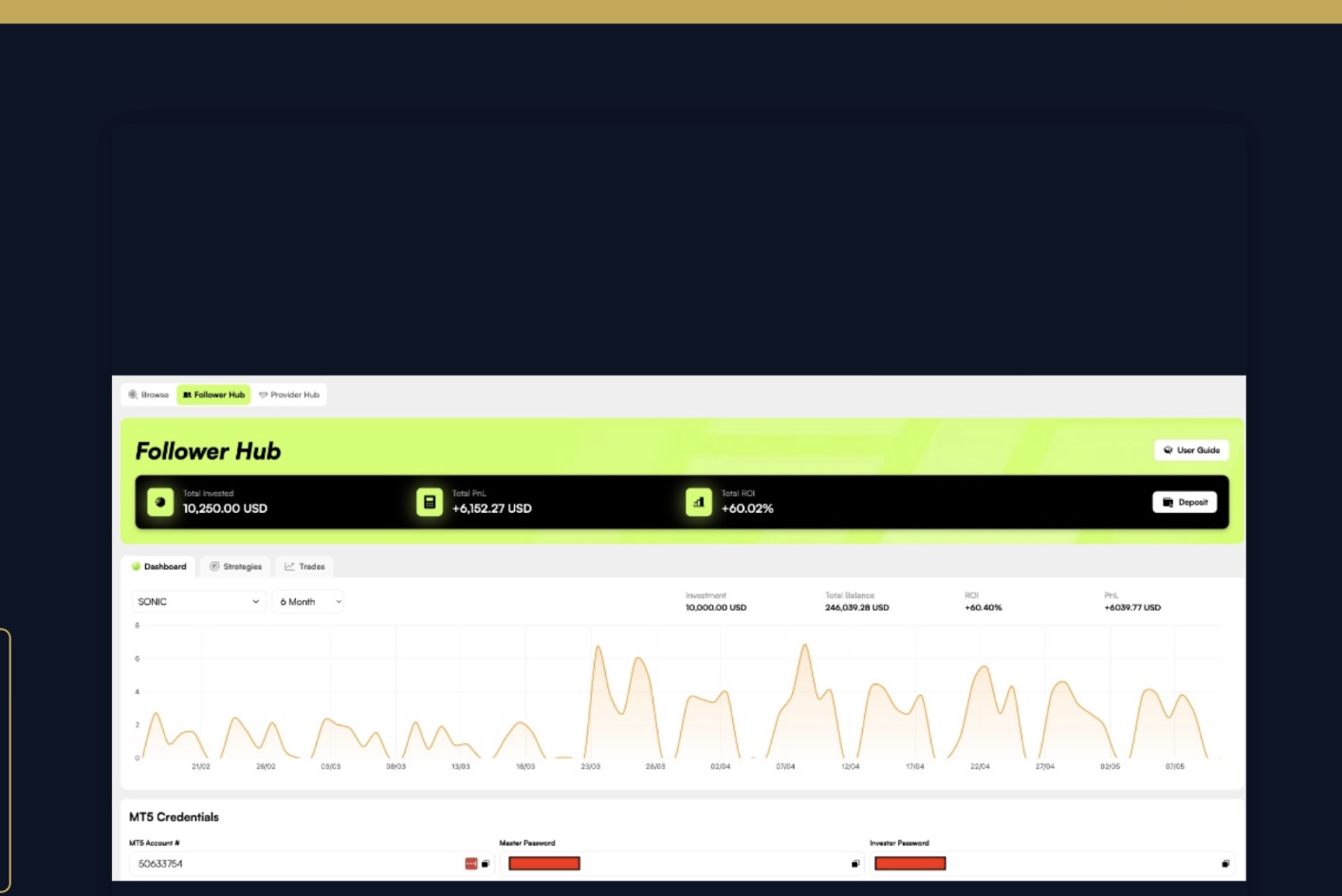
After Copy Now, your home base is the Follower Hub inside CopyX. The top bar shows Total Invested · Total PnL · Total ROI. The Dashboard tab shows your daily growth — the green chart is your amplified balance against your original investment.

Scroll down on the Dashboard to find your MT5 Credentials — MT5 Account #, Master Password and Investor Password. You'll need these to connect the MT5 mobile app.
Follower Hub
18

Track trades & withdraw profit

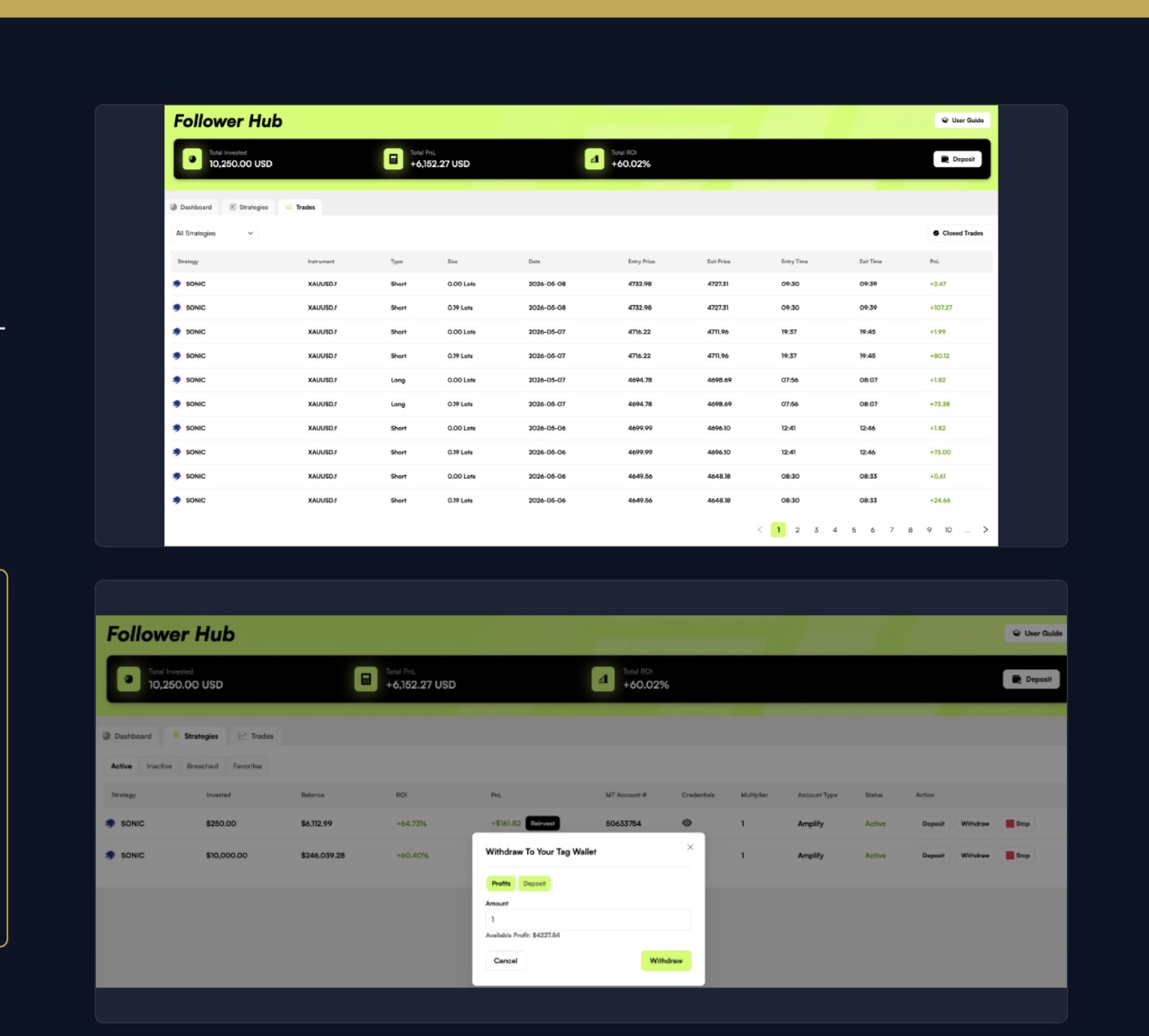
The Trades tab shows every trade Sonic has made: entry price, exit price, time period, PnL.

The Strategies tab is where you manage your money: click Withdraw anytime to take out profit or part of your original deposit. You're always in full control.

On withdrawals: choose Profits (profit only) or Deposit (part of your original capital). Profit is withdrawable from day one. Your original capital becomes liquid after a 30-day lock period.
Or compound instead: under Strategies you'll also find Reinvest, which puts profit back to work from as little as $1. Reinvested profit gets the same 24× amplification.
Track trades and withdraw
19

Install MT5 (optional)

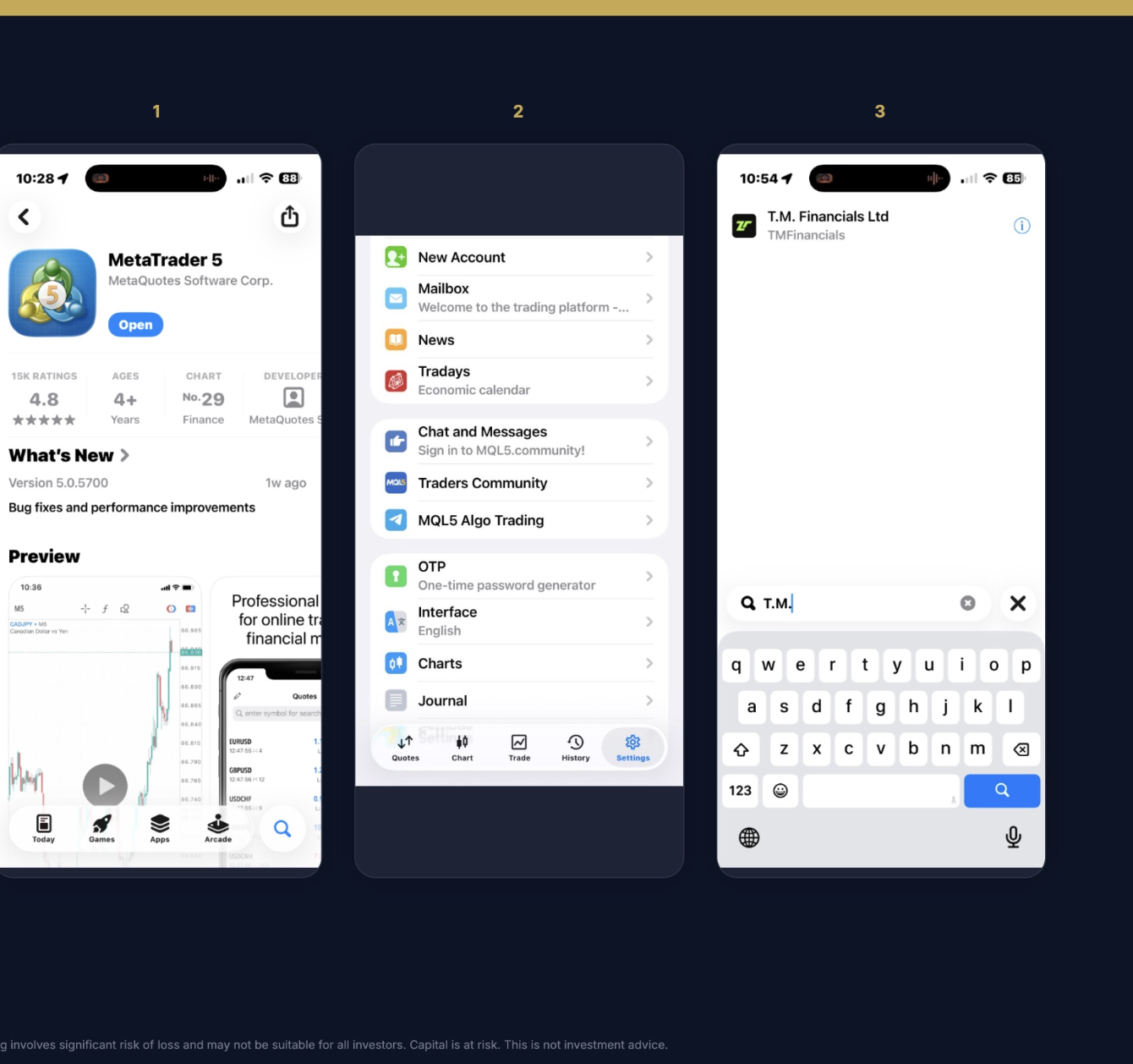
If you want to view your account on your phone, install MetaTrader 5 (MetaQuotes Software Corp.) from the App Store or Google Play.

In the app go to: Settings (bottom navigation) → New Account → search for T.M Financials and select the server TMFinancials-Server.

This step is purely optional — your trades, balance and withdrawals all work fine in the web Follower Hub without the mobile app.
Install MT5
20

Sign in to MT5

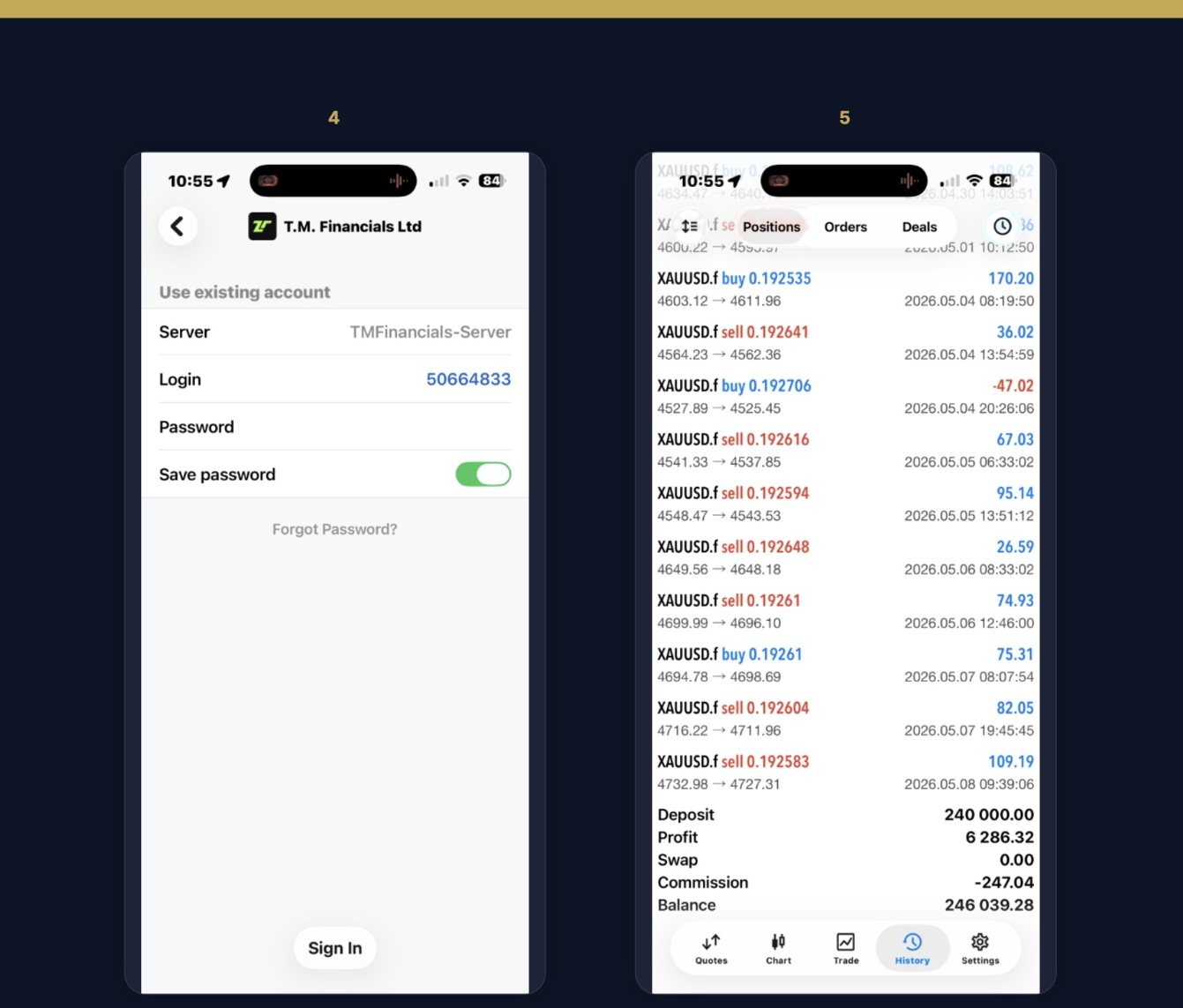
On the login screen:

Server: TMFinancials-Server (fills in automatically)
Login: copy your MT5 Account # from the Follower Hub
Password: paste your Investor Password

Turn on Save password and click Sign In. The History tab shows all closed Sonic trades and your current amplified balance.

Tip: use the Investor Password, not the Master Password — the Investor Password is read-only and doesn't allow trading. If your phone is lost, nobody can touch your account.
Sign in to MT5
🚀

Journey complete

Your Sonic account is live. Trades copy automatically. From registration to live copy-trading — in under 15 minutes.

Quick answers

The things people ask right after setting up.

💸 How is profit split? 30% performance fee, 70% stays with you. Charged only on profit
🛡️ What is the drawdown limit? 5% of your balance on 24×, 10% on 12×. Copying stops there, protecting the rest
When can I withdraw? Profit from day one. Original capital after a 30-day lock
🔢 What's the minimum? $10 to connect to the strategy. Start small, add more later

Need help?

If any step is unclear, a transaction doesn't go through, or you don't have a Community Token yet, let your inviter know.

Reach out to the person who pointed you here